6 Proven Techniques for Managers to Delegate Tasks Effectively Using Office 365
Are you struggling to delegate tasks effectively using Office 365? Mastering Office 365 task delegation strategies can be a game-changer for your productivity.
As a life coach, I’ve helped many professionals navigate these challenges. In my experience, busy managers often face difficulties in efficiently delegating and tracking tasks, especially when it comes to assigning responsibilities in Office 365.
In this post, you’ll discover specific strategies to overcome these challenges. We’ll explore Office 365 productivity tools like Microsoft Planner, SharePoint for project management, and Outlook to streamline your task management process and improve effective team collaboration.
Let’s dive into these task delegation strategies and workflow automation techniques in Office 365.

Why Efficient Task Delegation is Crucial
Delegating tasks isn’t just about assigning work; it’s about ensuring efficiency and reducing stress. Many clients initially struggle with the chaos that comes from unclear task assignments in Office 365 task delegation strategies.
This often leads to missed deadlines and team frustration.
When you can’t delegate tasks clearly, inefficiencies multiply. Imagine a team where tasks overlap, and no one knows who’s responsible, highlighting the importance of effective team collaboration.
Stress levels rise, and productivity plummets.
In my experience, busy managers face immense challenges in keeping track of delegated tasks. This is especially true when using Office 365 productivity tools that lack clear “Assign to” functionality, like Loop and Todo in Office 365.
The result? Increased workload and decreased team morale.
To avoid these issues, adopting robust task management solutions and Office 365 task delegation strategies is critical.

Key Steps to Effective Task Delegation with Office 365
Overcoming this challenge requires a few key steps. Here are the main areas to focus on to implement effective Office 365 task delegation strategies:
- Use Microsoft Planner for task assignment: Create boards and categorize tasks for efficient task distribution.
- Leverage SharePoint for collaborative task tracking: Set up project management sites to enhance team collaboration.
- Create custom roles in M365 Manager Plus: Design roles tailored to your team for assigning responsibilities in Office 365.
- Integrate Outlook for email-based task delegation: Assign tasks directly from emails to improve time management for managers.
- Utilize Teams for real-time task communication: Create dedicated channels for projects to boost Office 365 productivity.
- Set up automated task reports in Power Automate: Generate automated task summaries for workflow automation in Office 365.
Let’s dive into these Office 365 task delegation strategies!
1: Use Microsoft Planner for task assignment
Using Microsoft Planner for task assignment is essential for effective delegation and streamlined task management within Office 365 task delegation strategies.
Actionable Steps:
- Create a Planner board for your team. Organize tasks into buckets based on priority or department, enhancing workflow automation in Office 365.
- Assign tasks to team members with specific due dates and detailed descriptions, improving time management for managers.
- Utilize the ‘Progress’ feature to track task completion and follow up as needed, facilitating performance tracking in Office 365.
Explanation:
These steps matter because they help ensure tasks are clearly assigned and tracked, reducing confusion and inefficiency in Office 365 task delegation strategies.
Using Planner’s organization features can greatly enhance team productivity and effective team collaboration. For more insights on how to use Microsoft Planner effectively, visit this blog post.
Key benefits of using Microsoft Planner for task delegation strategies include:
- Improved task visibility and accountability
- Enhanced team collaboration and communication
- Streamlined workflow management
This approach sets a solid foundation for effective task delegation, paving the way for the next Office 365 productivity tools we’ll explore.

2: Leverage SharePoint for collaborative task tracking
Using SharePoint for collaborative task tracking is crucial for efficient project management and team coordination, making it a key component of Office 365 task delegation strategies.
Actionable Steps:
- Set up a SharePoint site dedicated to project management and task delegation strategies.
- Create task lists and assign responsibilities in Office 365, ensuring everyone has access.
- Use SharePoint’s version history feature to monitor changes and updates to tasks, enhancing effective team collaboration.
Explanation:
These steps matter because they ensure tasks are visible and trackable, reducing miscommunication and inefficiencies in Office 365 productivity tools.
SharePoint’s comprehensive features enhance collaboration and project transparency. For more detailed insights on setting up SharePoint for project management, visit this page.
By leveraging these capabilities, you’ll create a more organized and productive work environment, improving time management for managers and overall workflow automation in Office 365.

3: Create custom roles in M365 Manager Plus
Creating custom roles in M365 Manager Plus is essential for efficient Office 365 task delegation strategies and management.
Actionable Steps:
- Design custom roles tailored to your team’s needs and responsibilities for effective task delegation strategies.
- Delegate reporting, management, and auditing tasks to non-administrative users, enhancing workflow automation in Office 365.
- Regularly review and adjust roles to ensure efficiency and security in Office 365 productivity tools.
Explanation:
These steps allow managers to distribute tasks effectively and maintain control. Custom roles ensure tasks are handled by the right people without compromising security, supporting effective team collaboration.
For more insights, visit this resource.
Key advantages of custom roles in M365 Manager Plus for Office 365 task delegation strategies:
- Improved task distribution and accountability, aiding in time management for managers
- Enhanced security through role-based access control when assigning responsibilities in Office 365
- Increased efficiency in task management, complementing Microsoft Teams for task delegation
Implementing these strategies will optimize your team’s workflow and delegation processes in Office 365 productivity tools.

4: Integrate Outlook for email-based task delegation
Integrating Outlook for email-based task delegation is vital for streamlining task delegation strategies and ensuring clarity within Office 365 productivity tools.
Actionable Steps:
- Assign tasks directly from emails: Use Outlook’s task feature to turn emails into tasks and assign them to team members, enhancing effective team collaboration.
- Set up rules to auto-forward emails: Automatically forward specific types of emails to the appropriate team members based on predefined criteria, improving time management for managers.
- Utilize shared mailboxes: Ensure transparency and accountability in assigning responsibilities in Office 365 by using shared mailboxes for team collaboration.
Explanation:
These Office 365 task delegation strategies are crucial as they help ensure tasks are efficiently assigned and tracked, reducing miscommunication. Using Outlook’s features can enhance overall productivity and workflow automation in Office 365.
For more detailed insights on setting up Outlook for task management, visit this page.
By integrating Outlook for email-based task delegation, you can create a more organized and efficient work environment, complementing other Office 365 productivity tools like Microsoft Teams for task delegation and SharePoint for project management.
5: Utilize Teams for real-time task communication
Utilizing Teams for real-time task communication is essential for efficient collaboration and project management, making it a key component of Office 365 task delegation strategies.
Actionable Steps:
- Create dedicated channels for different projects or departments to organize communications and tasks for clarity, enhancing effective team collaboration.
- Use @mentions to delegate tasks directly to team members and follow up within the conversation threads, streamlining task delegation strategies in Office 365.
- Schedule regular check-ins and use video calls for more complex task discussions to ensure everyone is aligned, improving time management for managers.
Explanation:
These steps matter because they promote clear communication and accountability, reducing the likelihood of miscommunication and task overlap when assigning responsibilities in Office 365.
By using Teams’ features, you can enhance your team’s collaboration and productivity. For more insights on leveraging Teams effectively, visit this page.
Benefits of using Teams for task communication:
- Real-time collaboration and instant feedback
- Centralized information sharing and access
- Improved team engagement and connectivity
By integrating these strategies into your workflow, you’ll foster a more organized and efficient work environment, maximizing the potential of Office 365 productivity tools.

6: Set up automated task reports in Power Automate
Setting up automated task reports in Power Automate is vital for streamlining your Office 365 task delegation strategies and ensuring timely updates.
Actionable Steps:
- Create automated workflows: Generate task reports and summaries using Power Automate’s templates, enhancing workflow automation in Office 365.
- Set up notifications: Alert yourself and your team of approaching deadlines or overdue tasks, improving time management for managers.
- Integrate with other Office 365 productivity tools: Streamline task management and reporting by connecting Power Automate with tools like Microsoft Teams for task delegation and Planner for task distribution.
Explanation:
These steps matter because they help automate and simplify task tracking, reducing manual work and errors in your Office 365 task delegation strategies.
Leveraging Power Automate ensures you stay updated on task progress and deadlines, facilitating effective team collaboration. For more details on using Power Automate, visit this resource.
By implementing these strategies, you can enhance your team’s efficiency and stay on top of tasks, improving performance tracking in Office 365.
Partner with Alleo for Effective Task Delegation
We’ve explored the challenges of Office 365 task delegation strategies and how to overcome them. But did you know you can work directly with Alleo to make this process easier and faster?
Alleo provides affordable, tailored coaching support to help you master task delegation strategies. With full coaching sessions like any human coach, you’ll get personalized feedback and support for effective team collaboration and time management for managers.
Setting up an account is simple. Start with a free 14-day trial, no credit card required.
Create a personalized plan with Alleo’s AI coach to tackle your specific challenges in assigning responsibilities in Office 365.
The coach will follow up on your progress, handle changes, and keep you accountable via text and push notifications, enhancing your workflow automation in Office 365.
Ready to get started for free? Let me show you how to improve your Office 365 task delegation strategies!
Step 1: Log In or Create Your Account
To start your journey with Alleo’s AI coach for effective task delegation, Log in to your account or create a new one to begin your free 14-day trial without needing a credit card.

Step 2: Choose Your Focus – Building Better Habits and Routines
Click on “Building better habits and routines” to start tackling your task delegation challenges head-on; by improving your personal habits, you’ll be better equipped to implement the Office 365 strategies we’ve discussed and effectively manage your team’s workload.

Step 3: Select “Career” as Your Focus Area
Choose “Career” as your focus area to address task delegation challenges in your professional life, aligning with the Office 365 strategies discussed in the article for improved workplace efficiency and productivity.

Step 4: Starting a coaching session
Begin your AI coaching journey with an intake session, where you’ll discuss your task delegation challenges and set up a personalized plan to improve your Office 365 skills and management techniques.

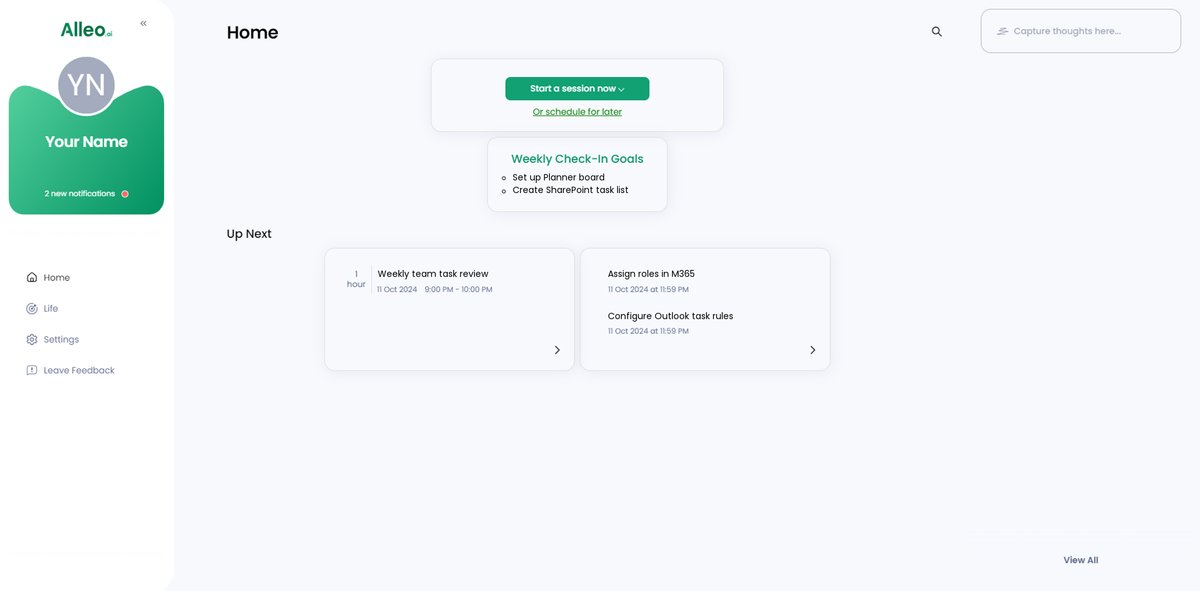
Step 5: Viewing and managing goals after the session
After your coaching session, check the app’s home page to view and manage the goals you discussed, allowing you to track your progress and stay accountable.
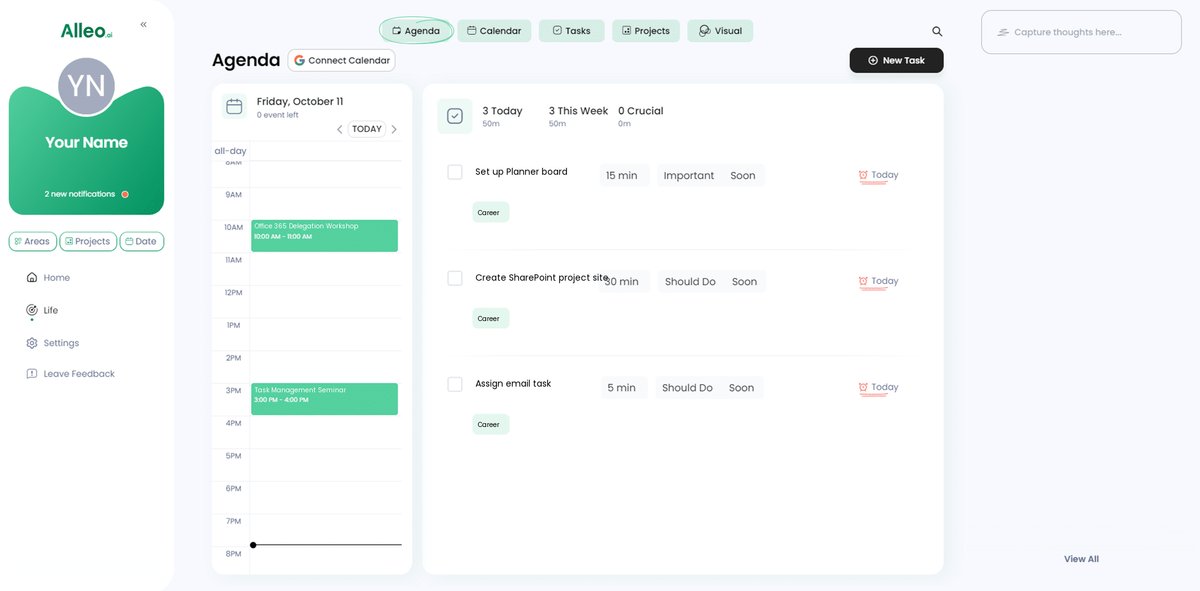
Step 6: Adding events to your calendar or app
Use the calendar and task features in the Alleo app to add important events and deadlines related to your task delegation goals, allowing you to easily track your progress and stay accountable as you work on improving your Office 365 task management skills.
Wrapping Up: Effective Task Delegation with Office 365
We’ve covered essential Office 365 task delegation strategies using productivity tools. From Microsoft Planner for task distribution to Power Automate for workflow automation in Office 365, each tool plays a crucial role in streamlining your workflow and enhancing team collaboration.
I know managing a team can be challenging. But with the right approach to assigning responsibilities in Office 365, you can reduce stress and boost productivity.
Remember, clear task assignments and performance tracking in Office 365 are key. Take action by implementing these task delegation strategies today.
And for personalized support with time management for managers, consider trying Alleo’s coaching services. It’s a game-changer for busy managers looking to improve their Office 365 task delegation strategies.
Ready to transform your delegation process using SharePoint for project management and Microsoft Teams for task delegation? Give Alleo a try for free today.