Master Tracking Delegated Tasks in Microsoft Loop: Strategies for Busy Professionals
Are you struggling to track delegated tasks in Microsoft Loop?
As a life coach, I’ve helped many professionals navigate these challenges. My experience shows that effective task management is crucial for productivity, especially when it comes to tracking delegated work in Microsoft Loop.
In this article, you’ll discover actionable strategies to manage and oversee delegated tasks in Microsoft Loop. You’ll learn about:
- Using Loop’s task tracking features for efficient task monitoring
- Integrating it with communication channels to enhance team productivity with Microsoft Loop
- Setting up automated notifications for digital workflow management
Let’s dive into Microsoft Loop productivity features and task delegation in Microsoft Loop.

Understanding the Challenges of Tracking Delegated Tasks
Keeping tabs on delegated tasks in Microsoft Loop can be daunting. Many professionals face common issues such as unclear task assignments and inconsistent updates when trying to track delegated tasks in Microsoft Loop.
These challenges significantly impact productivity and increase stress. I often hear clients mention how overwhelming it feels when they can’t see the progress of their delegated work using Microsoft Loop productivity features.
In my experience, this lack of visibility leads to missed deadlines and frustration. It’s disheartening when you work hard but still find yourself blindsided by incomplete tasks, even with digital workflow management tools.
Moreover, without proper tools and strategies for efficient task monitoring, managing workloads becomes even more difficult. That’s why addressing these issues is crucial for your success in team productivity with Microsoft Loop.

Three Key Strategies to Track Delegated Tasks in Microsoft Loop
Overcoming this challenge requires a few key steps. Here are the main areas to focus on to make progress in tracking delegated tasks in Microsoft Loop:
- Use Loop’s task tracking features effectively: Assign tasks with clear deadlines and track delegated work using Microsoft Loop productivity features.
- Integrate Loop with communication channels: Sync Loop with Microsoft Teams for seamless updates, enhancing team productivity with Microsoft Loop.
- Set up automated task status notifications: Configure notifications for key task updates, improving digital workflow management.
Let’s dive into these strategies for efficient task monitoring in Microsoft Loop!
1: Use Loop’s task tracking features effectively
Using Microsoft Loop’s task tracking features effectively is essential for staying organized and ensuring delegated tasks are completed on time.
Actionable Steps:
- Assign tasks with clear deadlines: Specify deadlines for each task to provide clarity and ensure timely completion when you track delegated tasks in Microsoft Loop.
- Leverage tagging and categorization: Create custom tags and categories to organize tasks by project or priority, enhancing digital workflow management.
- Conduct regular task reviews: Schedule weekly check-ins to review progress and make necessary adjustments, improving team productivity with Microsoft Loop.
Key benefits of effective task tracking include:
- Improved accountability
- Better time management for professionals
- Reduced stress levels
Explanation: Implementing these steps will help you stay organized and ensure tasks are completed on time.
Utilizing Microsoft Loop productivity features like tagging and regular reviews can significantly reduce stress and improve productivity.
According to ClickUp, effective task management software can help manage workloads and reduce stress.
This approach aligns with industry best practices and can make a significant difference in your workflow.
These strategies will help you take full advantage of Microsoft Loop’s capabilities and improve your task delegation and efficient task monitoring.

2: Integrate Loop with communication channels
Integrating Loop with communication channels is crucial for streamlining collaboration and keeping everyone on the same page when you track delegated tasks in Microsoft Loop.
Actionable Steps:
- Sync Loop with Microsoft Teams: Connect Loop with Microsoft Teams to ensure seamless communication and task updates for efficient task monitoring.
- Set up communication workflows: Establish protocols for task-related discussions and use Loop’s email integration to keep stakeholders informed about task delegation in Microsoft Loop.
- Utilize Loop’s notification settings: Customize notifications to receive alerts for key task updates, ensuring real-time awareness of tracking delegated work.
Explanation: Connecting Loop with communication tools like Microsoft Teams boosts collaboration and ensures that everyone stays updated on task progress, enhancing team productivity with Microsoft Loop.
According to Microsoft Tech Community, integrating collaboration tools can significantly enhance productivity. These steps help you stay organized and ensure timely task completion using Microsoft Loop productivity features.
Benefits of integrating Loop with communication channels:
- Enhanced team collaboration using Loop components for task tracking
- Faster decision-making processes in digital workflow management
- Improved project visibility for tracking delegated tasks in Microsoft Loop
Integrating communication channels with Loop can greatly improve your workflow and productivity, making it an essential collaboration tool for busy managers.
Partner with Alleo to Master Task Management in Microsoft Loop
We’ve explored the challenges of tracking delegated tasks in Microsoft Loop and ways to overcome them. But did you know you can work directly with Alleo to make task delegation in Microsoft Loop easier and faster?
Alleo is an AI life coach and organizer designed to help busy professionals like you improve time management. Alleo offers affordable, tailored coaching support to solve your specific task management challenges and enhance your Microsoft Loop productivity features.
Setting up an account is simple. Sign up and create a personalized plan that suits your needs for efficient task monitoring and digital workflow management.
Alleo’s coach will guide you through managing task assignments in Loop, integrating communication channels, and setting up automated notifications to track delegated tasks in Microsoft Loop effectively.
The coach will follow up on your progress, handle changes, and keep you accountable via text and push notifications. You’ll get full coaching sessions, just like with a human coach, focusing on team productivity with Microsoft Loop.
Ready to get started for free and enhance your collaboration tools for busy managers?
Let me show you how to leverage Loop components for task tracking!
Step 1: Log in or Create Your Account
To get started with Alleo and master task management in Microsoft Loop, simply Log in to your account or create a new one to begin your journey towards improved productivity and organization.

Step 2: Choose “Building better habits and routines”
Select “Building better habits and routines” to establish a structured approach for managing delegated tasks in Microsoft Loop, helping you create consistent workflows and improve your productivity in tracking and overseeing assignments.

Step 3: Select “Career” as Your Focus Area
Choose “Career” as your focus area to optimize your task management in Microsoft Loop, aligning with the article’s strategies for improved productivity and reduced stress in your professional life.

Step 4: Starting a Coaching Session
Begin your journey with Alleo by scheduling an initial intake session, where you’ll discuss your task management challenges in Microsoft Loop and create a personalized plan to improve your workflow.

Step 5: Viewing and Managing Goals After the Session
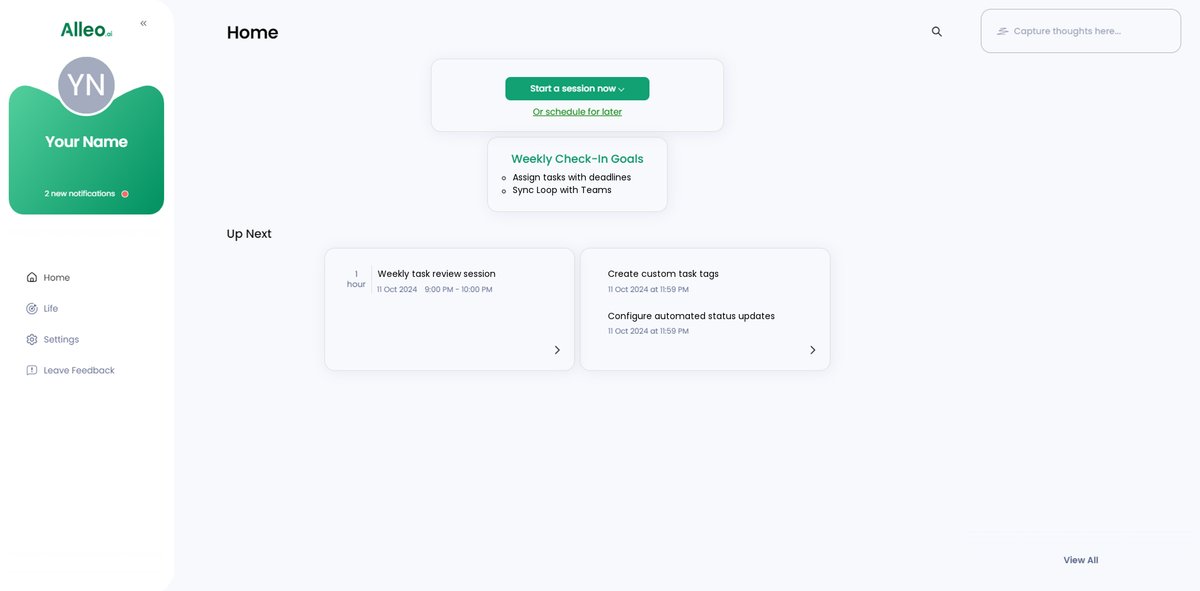
After your coaching session with Alleo, you’ll find your discussed goals conveniently displayed on the app’s home page, allowing you to easily track and manage your progress in Microsoft Loop task management.
Step 6: Adding events to your calendar or app
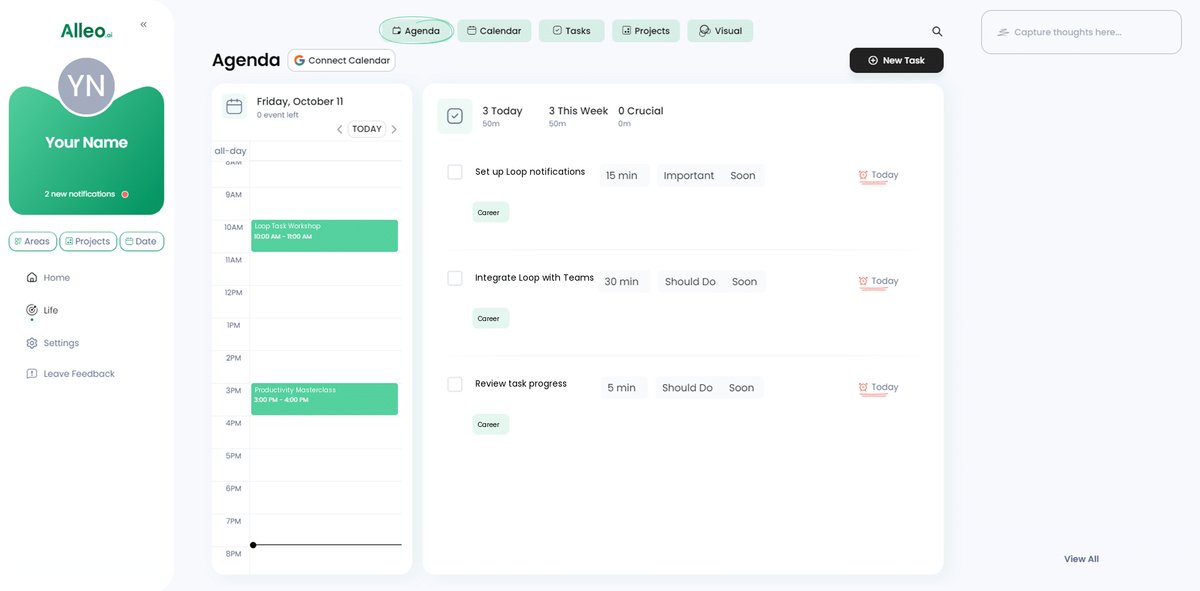
Use Alleo’s calendar integration to easily add tasks and deadlines from Microsoft Loop, allowing you to track your progress in solving task management challenges directly within the app’s calendar and task features.
Wrapping Up: Mastering Task Management in Microsoft Loop
Now that we’ve discussed these strategies, it’s time to take action. Managing delegated tasks doesn’t have to be overwhelming when you track delegated tasks in Microsoft Loop.
Using Loop’s task tracking features, integrating communication channels, and setting up automated notifications will transform your digital workflow management. These steps will help you stay organized and reduce stress while improving team productivity with Microsoft Loop.
Remember, you’re not alone in this journey. Many professionals face these challenges with task delegation in Microsoft Loop, and implementing these strategies can make a significant difference in efficient task monitoring.
For an extra boost in tracking delegated work, consider trying Alleo. It’s designed to help busy professionals like you navigate task management effortlessly, complementing Microsoft Loop productivity features.
Take control of your tasks today. Try Alleo for free and see the difference it can make in enhancing your time management for professionals and mastering Microsoft Loop task assignment.